


Microsoft 365 Support
Login Guides for Microsoft 365
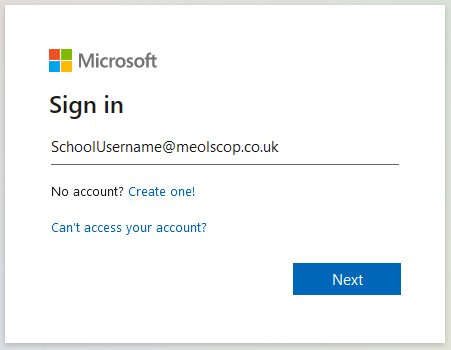
To access Microsoft 365 on the internet, just click on the “Microsoft 365” link in the Student drop down menu, top right of this page, or browse to www.office.com. Click on the “Sign In” button, then enter your school email address and click “Next”.
Please note the format for the pupils log in details:
Example for Joe Smith – email is the surname-initial-leave year – examples below:
Year 7 smith-j-26@meolscop.co.uk
Year 8 smith-j-25@meolscop.co.uk
Year 9 smith-j-24@meolscop.co.uk
Year 10 smith-j-23@meolscop.co.uk
Year 11 smith-j-22@meolscop.co.uk
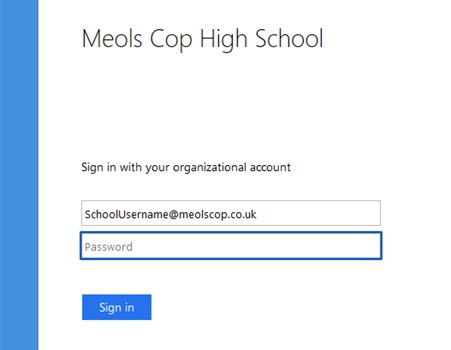
Then enter your school password and click on “Sign In”.
You will then be taken to your Microsoft 365 home screen where you can access Teams, OneDrive, email and more. You can also install Microsoft Office applications on your PC. To install Microsoft apps on your phone or tablet see the guide below. Please note, use of Microsoft 365, via either the website or an app, requires a connection to the internet.
We recommend that where possible individual apps, such as Teams and OneDrive etc, are installed on the device you use to access them. The apps work better than using a web browser. Please also make sure your device has been fully updated for best compatibility. If you have followed the instructions in the documents above but you are still having problems please contact our IT Support unit directly, giving as much information about your device and the problem you are having as you can, by emailing itsupport@meolscop.co.uk
Frequently Asked Questions
Microsoft 365 connects to the school to check your login details. They are the same details you use to login to a PC when you are in school. The only difference is, Microsoft 365 asks for your school email address and password. Your school email address is simply your username followed by @meolscop.co.uk. If, after following the guides above, you are still struggling, ask a parent or guardian to email itsupport@meolscop.co.uk. Please note we can only reply to email addresses registered with the school already. Please also give as much information about the device you are using, and the problem you are having, as you can.
Your teacher will set your assignment and give you instructions for what to do. You can check the class posts from your teacher and other classmates in Teams. Some of you might use class notebook too. You can access Word, PowerPoint, email and more through the Teams app icon so everything you need you can get through Teams. Everything in the one place, homework this year is all on Teams too, not Show my Homework.
You can upload your work through the Assignments tab in Teams. Or if you find your work in files and it is to watch or join a lesson or complete a quiz, make notes or mind maps, then you can do this on paper or in Microsoft Word and follow the instruction the teacher sets. Keep your notes safe and you can send photos of work done on paper to your teacher. Your teacher will then be able to see who has viewed or completed the work and provide you with feedback.
You can contact your teacher or email them through Teams. But if you have problems accessing your work, or you need support while at home, or feel you need to talk to someone, please don’t stress contact school and a member of staff will get back to you as soon as possible. Please do not worry we are still here to help and don’t forget, you could try asking a friend or a family member, or carry out independent research using Google and the online links. Rather than stress, stay positive and just move on to the next task and focus on what you can do. You are not expected to get through everything.